



.avif)

GLG MCP
Table of contents
- Prerequisites
- How It works
- Example Prompts
- Supported Clients
- Claude Integration
- Authentication & Data Access
- FAQs
- Troubleshooting
GLG is the world's insight network, connecting professionals with leading subject-matter experts for research, due diligence, and informed decision-making. The GLG MCP connector brings your GLG account into any MCP-compatible AI assistant, so you can ask questions about your projects, engagements, and research history without switching between tools.
Prerequisites
Sign-in: The first time you connect, you'll be taken to myGLG to sign in. GLG uses OAuth 2.0 — your credentials go directly to GLG, not to your AI client.
How it works
You ask your AI assistant a question about your GLG account
- Your assistant forwards the request to the GLG MCP connector
- The connector checks your session and confirms what your account can access
- Relevant data is fetched from your GLG account in real time
- That data is returned to your assistant as structured context
- Your assistant incorporates it into its response
Example prompts
- Research and due diligence
- Prompt: "What GLG projects am I currently working on?"
Your assistant pulls up active engagements, shows project status, and flags any upcoming expert calls.
- Prompt: "What GLG projects am I currently working on?"
- Portfolio review
- Prompt: "How many GLG consultations have I had this quarter?"
Your assistant tallies your engagement history and gives you a summary of recent research activity.
- Prompt: "How many GLG consultations have I had this quarter?"
- Session prep
- Prompt: "Pull any GLG Library transcripts relevant to managed markets."
For accounts with a GLG Library subscription, your assistant finds and surfaces relevant transcript content.
- Prompt: "Pull any GLG Library transcripts relevant to managed markets."
Supported clients
GLG MCP is built on the open Model Context Protocol, so it works with any MCP-compatible AI platform — giving you access to your GLG data wherever you already do your research.
Live in the connector directory (one-click setup):
GLG is available directly in the Claude and ChatGPT connector directories. On these platforms you can find GLG in the connector list, sign in, and start using it in a couple of minutes — no manual configuration needed.
Other MCP-compatible platforms:
For platforms not yet listed in a directory, GLG can be added manually using our MCP server URL through the platform's MCP settings or integration panel. Any client that supports the standard MCP connection flow (Streamable HTTP transport and OAuth) can connect this way, including many firms' own internal AI tools.
Expanding support:
We're actively working to improve the experience on additional platforms, including Microsoft Copilot and Google Gemini, with more to come.
However you connect, the connector retrieves your account data — projects, engagements, and Library content — and returns it as context your AI assistant can reason over. Responses reflect your specific account and entitlements; no data from other accounts is ever included.
Claude integration
Step 1: Find the GLG Connector
- Log in to claude.ai or access Claude desktop
- Click Customize in the sidebar
- Go to Connectors
- Find GLG in the connector list
Step 2: Connect to GLG
- Click Connect next to GLG
- You'll be taken to the myGLG sign-in page
- Enter your GLG credentials
- Once signed in, you'll be redirected back to Claude
Step 3: Start Using GLG MCP
- Open a new conversation in Claude
- GLG tools are now active in your session
ChatGPT integration
- Log in to chatgpt.com or open the ChatGPT desktop app
- Select Plugins in the sidebar, or go to Settings → Plugins
- Search for GLG and open its listing
Step 2: Connect to GLG
- Select Connect
- You’ll be taken to the myGLG sign-in page
- Enter your GLG credentials and authorize the connection
- Once signed in, you’ll be redirected back to ChatGPT
Step 3: Start using theGLG MCP
- Open a new conversation in ChatGPT
- Add GLG by typing @GLG, or select + → More → GLG
Authentication & data access
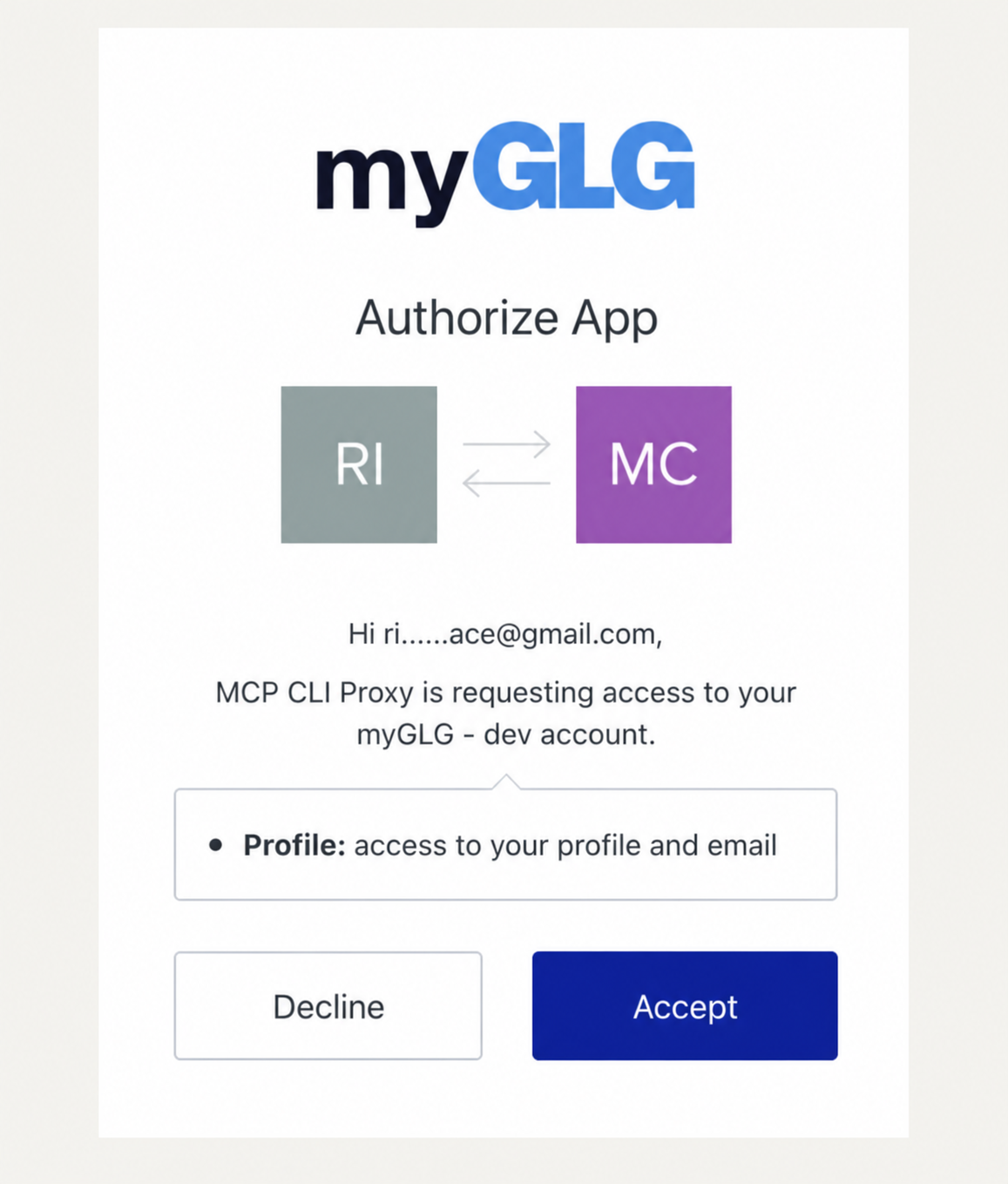
Connecting GLG triggers an OAuth 2.0 sign-in flow. You sign in directly on myGLG — your credentials are never passed to your AI client. After sign-in, your assistant holds a short-lived access token it uses to make requests on your behalf.
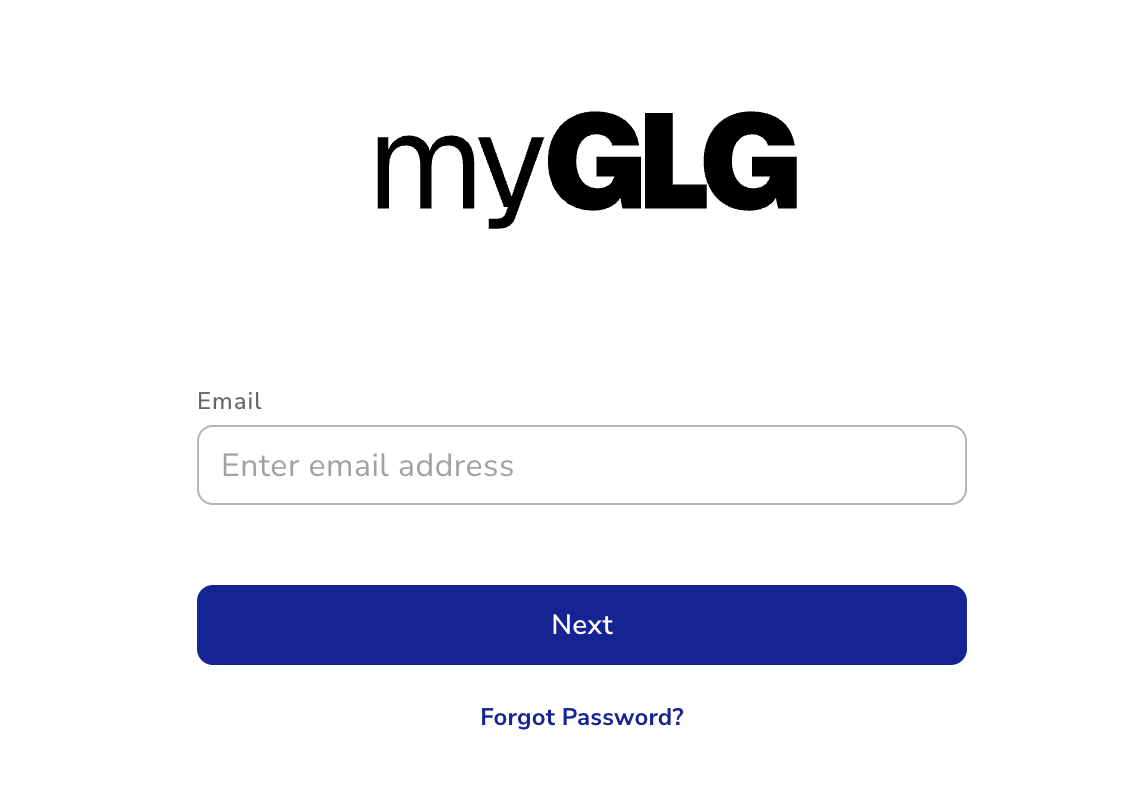
Enter your email, click Next, and complete your password. A consent screen then summarizes what the connection will be able to do — click Accept to finish.
The access token is stored locally on your device and is never shared with third parties.
What GLG can access
What GLG cannot access
- Your conversation history with your AI assistant
- The prompts you type or the responses your assistant generates
- Data belonging to any other GLG account
- Billing or payment information
- Your GLG data is never used to train or improve any AI model
Permissions
Permissions are scoped to your GLG account. The connector only accesses the data needed to answer your questions.
Revoking access
Remove the GLG connector from your AI client's settings at any time. Access is revoked immediately, and your assistant will no longer be able to reach your GLG account.
Frequently Asked Questions
Do I need a GLG account to use this connector?
Yes. The GLG MCP connector requires an active GLG account. If you don't have one, contact your GLG account manager or visit glg.com.
Which AI assistants support GLG MCP?
GLG is live in the Claude and ChatGPT connector directories, where it can be added in a couple of clicks. Beyond those, GLG works with any AI assistant or client that supports the Model Context Protocol — it can be added manually using our MCP server URL through your client's connector or integration settings. We're also actively working to improve support on additional platforms, including Microsoft Copilot and Google Gemini. Refer to your AI client's documentation for how to add a connector.
How do I connect and authenticate with GLG?
Add the GLG MCP connector using your AI client's MCP settings or integration panel (on Claude and ChatGPT, you'll find GLG directly in the connector directory). You'll then be prompted to sign in with your GLG account credentials.
Authentication is per-user OAuth 2.0 — each person signs in individually with their own myGLG credentials, and access is scoped to what that user is already entitled to. There's no shared or organization-level login or API key; every user authenticates individually. GLG supports Dynamic Client Registration, so compliant clients register automatically through the standard OAuth flow — there are no static client IDs or secrets to request from GLG.
How do I disconnect GLG?
Find the GLG connector in your AI client's settings and remove or disconnect it. This immediately stops your assistant from accessing your GLG data.
Can I switch to a different GLG account?
Yes. Disconnect your current GLG connection first, then reconnect and sign in with the other account.
Does GLG see my conversations with my AI assistant?
No. See Authentication & Data Access for a full breakdown of what GLG can and cannot access.
Is my data stored by the connector?
The data GLG returns to answer your questions is not stored — it's fetched live per request and discarded. To operate and improve the connector, GLG logs the tool requests made by your AI assistant (the parameters sent to GLG, e.g. search terms, call ID, search results ID) and may use them for product analytics and product improvement purposes. These logs capture the request your AI assistant sends — it does not capture your full conversation, your prompts, or your AI assistant's responses. GLG does not use this data to train any AI or foundation model. These logs are retained in accordance with GLG’s recordkeeping policies for product analytics purposes. All other data — including your 1:1 call transcripts and related content — remains governed by your firm's existing agreement and retention period settings with GLG.
Who do I contact for support?
For issues with GLG data or your GLG account, contact your GLG account manager or GLG Support.
For issues with the MCP connector itself, see Troubleshooting.
Troubleshooting
Sign-in issues
The browser window didn't open
Some browser security settings may block the authentication pop-up. Try allowing pop-ups from your AI client and retry the connection.
I see "account not found" or "authentication failed"
Your GLG account may not be active or your email address may not be recognized. Contact your GLG account manager to verify your account status.
I connected, but my assistant says to contact my GLG account manager
Access to the GLG connector is enabled at the account level and must be turned on by GLG at the request of your account owner. If you add the connector before access has been enabled, sign-in and connection will succeed — but the first time you try to query your GLG data, your assistant will return a message directing you to contact your GLG account manager. Reach out to your account owner or GLG account manager to request access. Once it’s enabled, your assistant can query your GLG data — no need to reconnect.
I'm stuck in a sign-in loop
Your local session data may be corrupted. Try disconnecting and reconnecting the GLG connector from your AI client's settings. If the issue persists, clear the local MCP token cache on your device (location varies by client) and reconnect.
Data issues
My assistant says it can't access my GLG account
The connector may have been disconnected or your session may have expired. Check your AI client's connector settings to confirm GLG is still connected. If not, reconnect.
My data looks outdated
GLG data is fetched live when you ask for it. If something looks stale, try asking again. If you believe there's a data discrepancy on GLG's side, contact GLG Support.
My assistant doesn't know about a project I can see in myGLG
The connector accesses your projects as they appear in your GLG account. If a project is missing, confirm it's visible when you log in to myGLG directly. If it is, contact GLG Support.
Still having issues?
Contact GLG Support for account-related issues, or check the FAQ for common questions.